

How to use Mantis
Mantis is our ticketing tool for communication between you and the technical teams.
When you have a request, you can submit a ticket on the platform. It will then be handled by a project manager who will support you in resolving the bug you encountered or the enhancement you want.
This tool is intended for functional and technical requests. For any mini-project request, feel free to contact the project manager in charge of your site.
Create a ticket
- To sign in to the tool, go to: https://mantis.kaizen-agency.fr/.
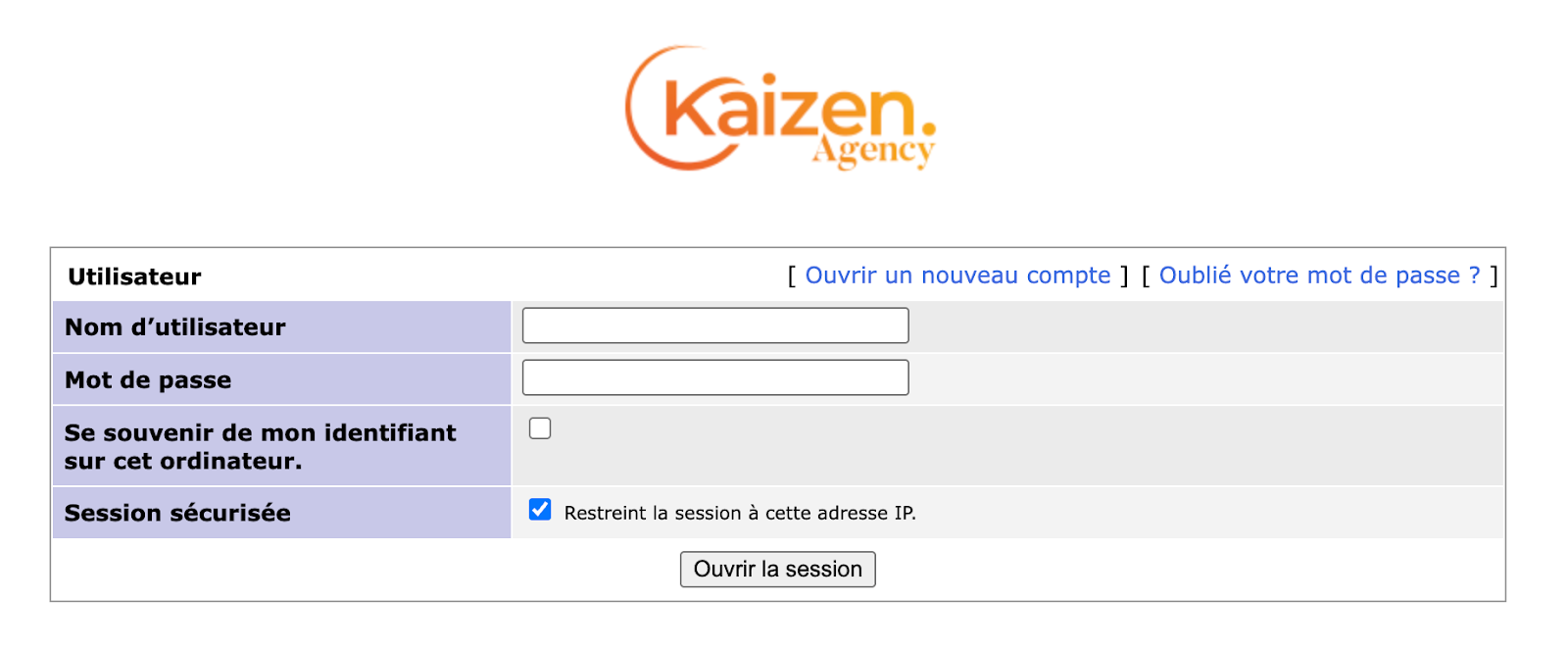
- This window appears:
-
Enter the login details that were provided to you. You can check the ‘Remember my login on this computer’ box if you wish.
-
Once signed in, click the ‘Report Issue’ tab.

- This form appears:
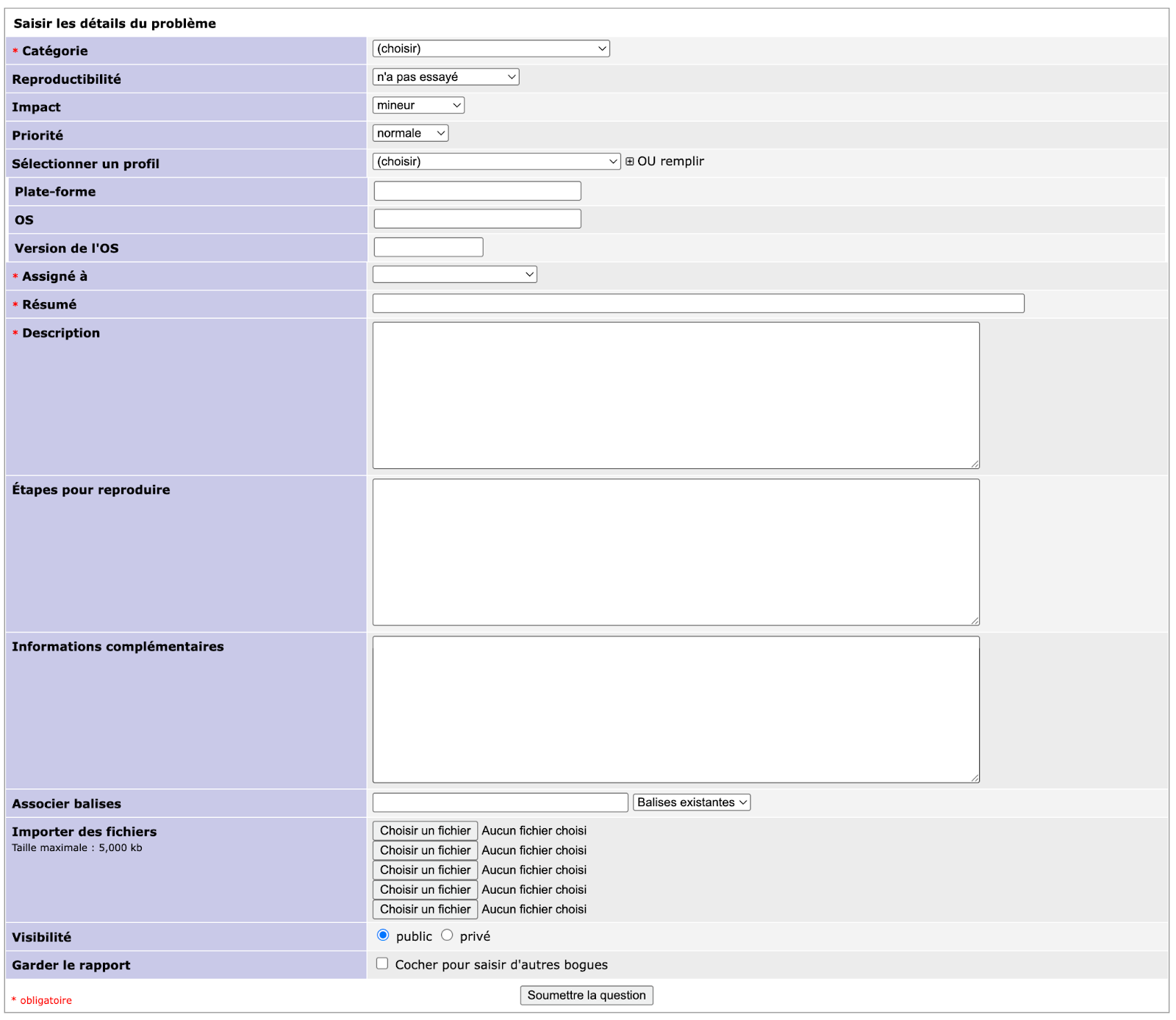
- Fill in at least the required fields:
- Category: if you are unsure which to choose, select ‘General’
- Assigned To: select the project manager in charge of your project
- Summary: summarize the ticket topic in one sentence (as you would in an email subject line)
- Description: describe the bug you encountered or the enhancement you want, with as much detail as possible. Feel free to copy the URLs of the relevant pages, and describe the steps you took to identify the bug. If the bug is hard to reproduce, tell us which browser and operating system you are using. The more detail our teams have about the bug, the more easily they can reproduce and fix it.
- When you have filled in all the fields, you can ‘Submit Issue’
Other fields are available:
Severity and Priority: if the bug is blocking, you can flag it in these fields. In that case, feel free to follow up your ticket with an email or a call to the agency so we can respond as quickly as possible.
Upload Files: attach files if you want to illustrate your request. You can add photos, PDFs, or videos so we can quickly and easily see the issue. If the files are too large, you can send them via WeTransfer.
- The submitted ticket appears in the ‘View Issues’ tab.

You can access it at any time by clicking the number under the ‘ID’ column. You will then find all the information you entered.
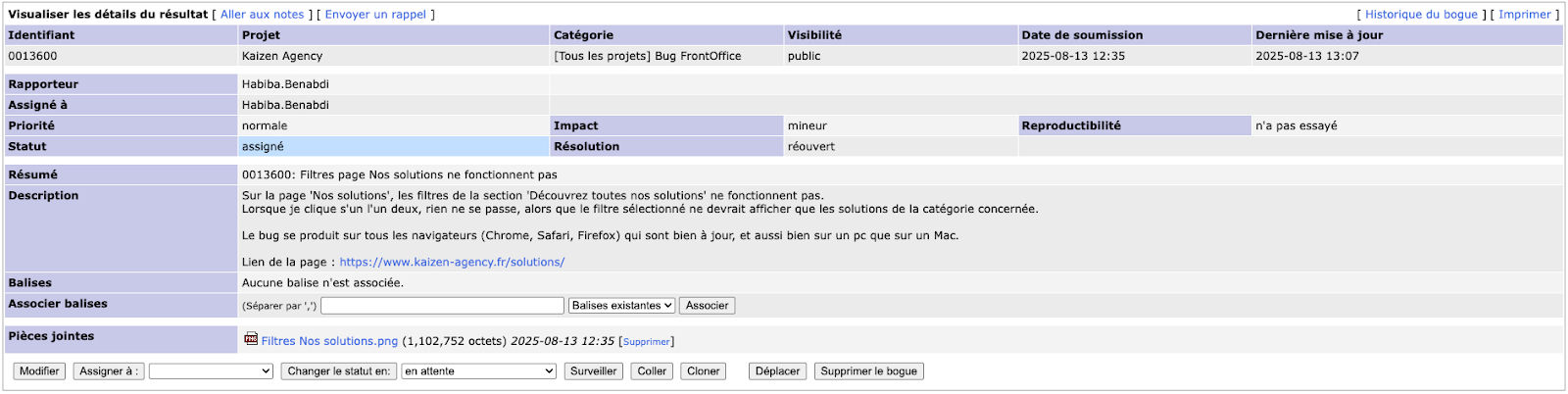
You can also add a note at any time at the bottom of the page.
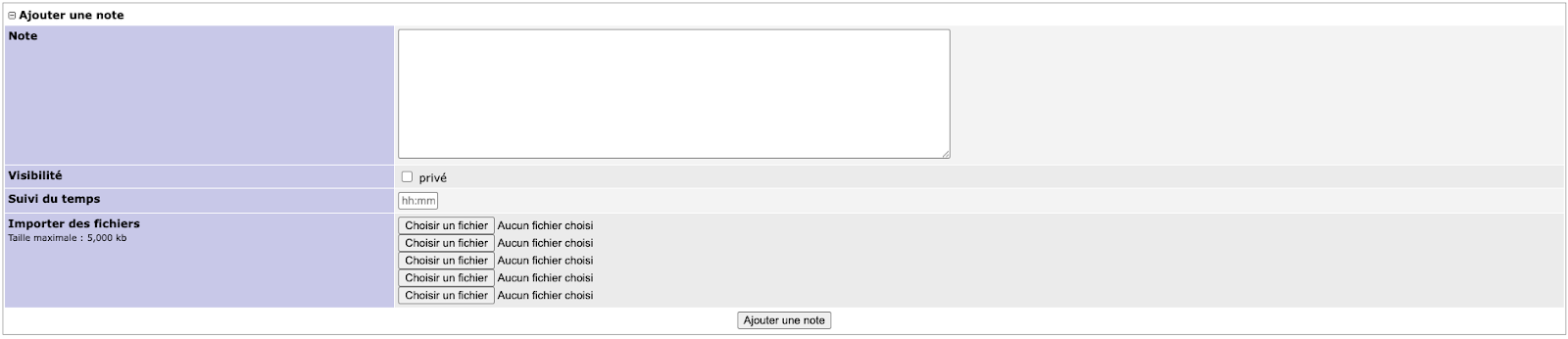 Write your comment, then click ‘Add Note’
Track ticket progress
- The submitted ticket appears with the status Assigned. It is assigned to the project manager you selected.

- The ticket is estimated by the technical teams and moves to the status Estimation in progress. It remains assigned to the project manager.

- The ticket is scheduled and moves to the status Development in progress. It is assigned to a developer or integrator on the team who handles the request on the test environment.

- The ticket is ready to test on the test environment and moves to the status To test on staging. It is assigned to a project manager who tests the ticket.

Once internal tests are validated, the project manager adds a note to the ticket explaining what was fixed and how to test it on the test environment, and assigns it to you.

At that point, the ticket also appears in the ‘My View’ > ‘Assigned to Me’ tab. This tab means we are waiting for feedback from you.

- Once you have tested the ticket, there are two possible outcomes:
- The bug is resolved: you set the ticket status to ‘Ready to deploy to production’ and assign it to the project manager
- The bug is not resolved: you set the ticket status to ‘Feedback’ and assign it to the project manager, adding a note to explain what is not working. Again, try to be as precise as possible. Also, clear your browser cache before testing. In most cases, if you do not see a change, it is because of browser cache.
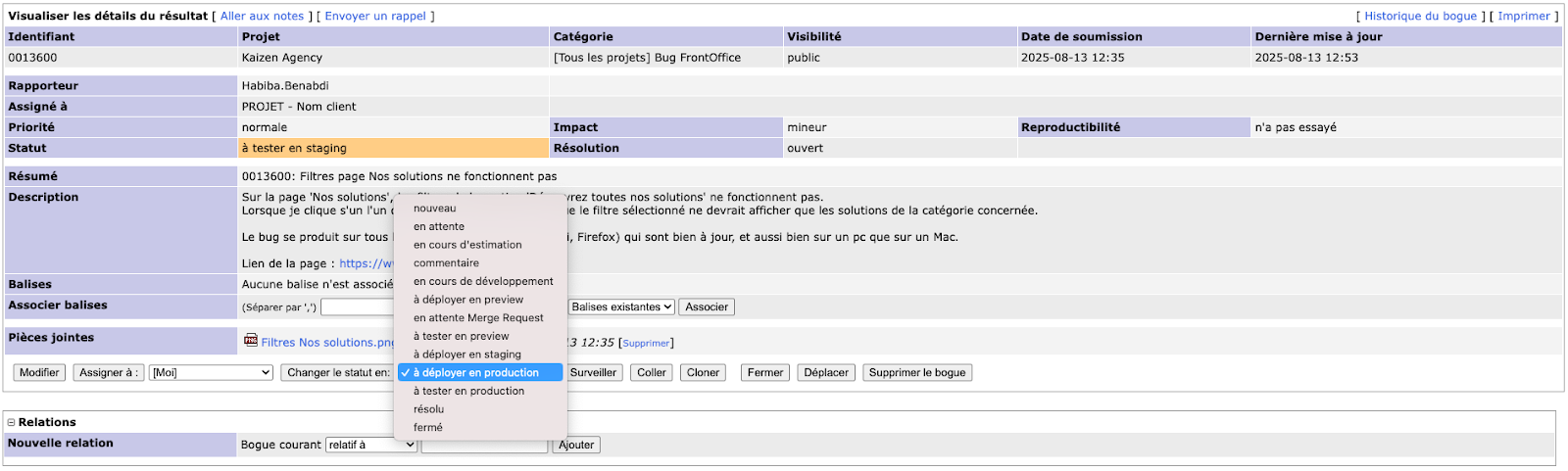 In the dropdown menu, click the desired status, then click ‘Change Status To’.
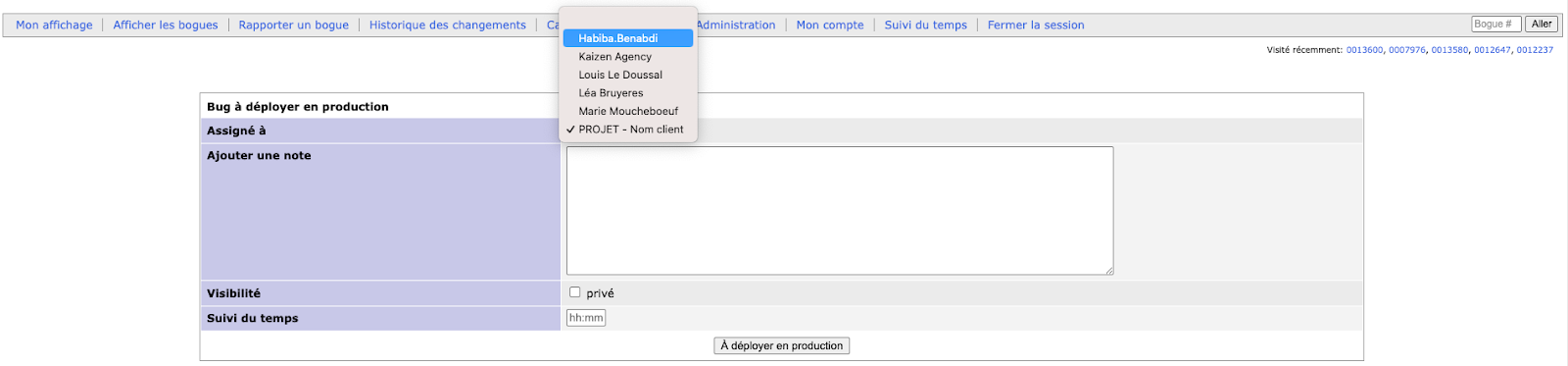 In the dropdown menu, click the desired project manager, then click ‘Ready to deploy to production’ or ‘Feedback’ depending on the status previously selected.
- The ticket is ready to deploy and moves to the status Ready to deploy to production. It is assigned to a developer or integrator who deploys the ticket.

- The ticket is ready to test and moves to the status To test on production. It is assigned to a project manager who tests the ticket.

Once internal tests are validated, the project manager adds a note to the ticket explaining how to test it on the production site and assigns it to you. At that point, the ticket also appears in the ‘Assigned to Me’ tab. This tab means we are waiting for feedback from you.
-
Once you have tested the ticket, there are two possible outcomes:
- The bug is resolved: you set the ticket status to ‘Resolved’ and assign it to the project manager

- The bug is not resolved: you set the ticket status to ‘Feedback’ and assign it to the project manager, adding a note to explain what is not working. Again, try to be as precise as possible. Also, clear your browser cache before testing. In most cases, if you do not see a change, it is because of browser cache.

-
The ticket is ready to close and moves to the status Closed. It is assigned to you so you can reopen it at any time.

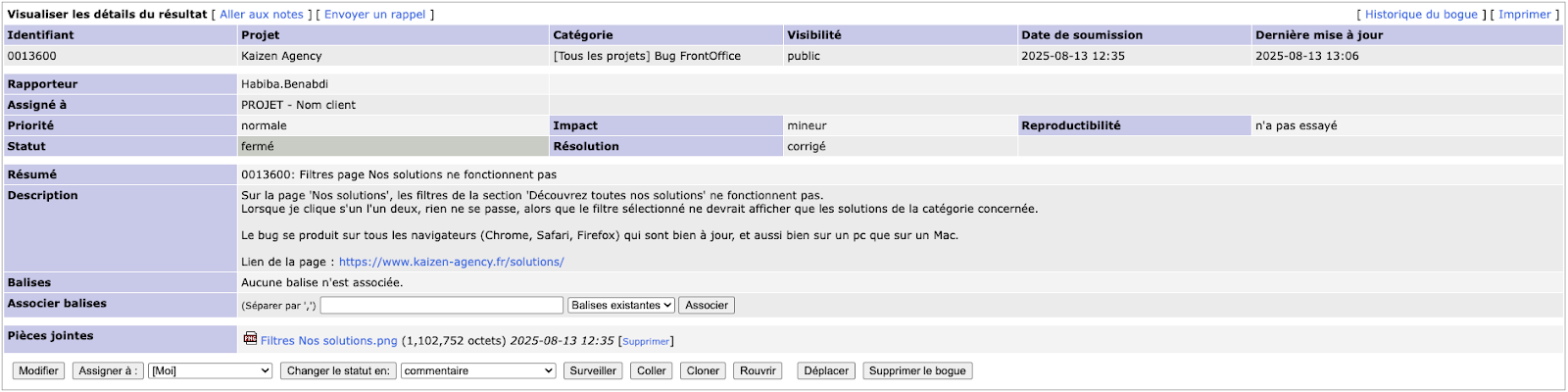 To reopen the ticket, click the ‘Reopen’ button